THE MULTIMEDIA

Wednesday, 17 June 2015


Windows 10 Mobile Build 10136


Hands-on: Windows 10 Mobile build 10136 shows polished Cortana, new Photo app


Microsoft claims the latest version of its Cortana digital assistant within build 10136 of Windows 10 Mobile is nearly complete, and it shows. It launches quickly, provides a comprehensive view of your day, and sparkles, fresh and clean.
Unfortunately, I wasn’t quite as impressed with the rest of it.
Microsoft released the latest build of Windows 10 Mobile on Wednesday, after warningthat prospective testers would either have to downgrade their existing Windows 10 Mobile phones back to Windows Phone 8.1 or else upgrade a newer phone. I chose the latter, upgrading the massive Lumia 1520 phablet to the latest build.
That proved fortuitous, because build 10136 adds a one-handed mode for straphangers, covert texting, and other scenarios where you can’t hold your phone with two hands. Microsoft also delivered a lovely update to the Photos app, organizing your photos thoroughly—and, even better, adding the Lumia Camera app to phones like the Nokia Icon. There’s also a number of other random, minor UI improvements scattered throughout. But Cortana's the star attraction for Windows Phone, and the app looks and feels terrific.
What's not so terrific in this build: an inability to pin tiles to the home screen, multiple Search (Cortana) apps, Live Tiles that either wouldn’t work or simply stopped working, and the like. I can certainly chalk these up to preview software, but let’s hope Microsoft solves these problems soon.

First, the good news: Cortana looks great

windows 10 mobile cortana finalMARK HACHMAN
Here’s the overview of what Cortana thinks you need to know.
Google Now, Apple’s Siri, and Microsoft’s Cortana continue to elbow each other aside as the three digital assistants compete to be the most prescient and helpful. Following Apple’s unveiling of improvements to Siri with iOS 9, it’s now Microsoft’s turn to improve Cortana, and build 10136 does just that.
Each assistant has its own style: Siri works quietly behind the scenes. Google Now briskly doles out a series of cards. Cortana provides a one-page executive summary of what she believes you ought to see, and presents it to you when you trigger what’s now called the Search app.
After a bit of introduction, Cortana gets down to work: She opened my page with the score of the Oakland A’s game in progress, reminded me I had a water bill to pay, and finished off with the latest Microsoft news. Be sure and scroll down—there was actually a long list of items that includes local weather and nearby places to eat, arranged in a card-like fashion.
Cortana didn’t find a note from Amazon announcing that a shipment was en route, as it promises to do. When I asked, “where is my package,” it snapped up a list of search results lickety-split—not the answer I was looking for, though. You can ask her stock prices and other facts, and the results were swift in my experience.
All the CortanasMARK HACHMAN
Cortana on (from left to right) Windows 8.1 Update, Windows 10 Mobile Build 10030, Windows 10 Mobile Build 10136.
What I like about this version of Cortana is that she is explicitly helpful. Cortana explained that she was providing me the in-game score, and also asked midway down the page whether I wanted to continue receiving restaurant recommendations. Google does this as well, but much more impersonally. 
If this is the Cortana Microsoft ships as part of Windows 10, I think you’ll like it.

A series of Live Tile issues, solved with a reboot

You may experience some problems with Live Tiles on the home screen after installing the new build; I did.  For whatever reason, I was able to add apps as Live Tiles soon after the build was installed. But I quickly found that I couldn’t add any more apps, and that those that I had installed on the start screen either failed to show live information or inexplicably stopped working. They even rearranged themselves randomly on one occasion. That prevented apps like Cortana or my battery meter from displaying live information. Fortunately, a reboot seemed to solve the problem. 
The new build also showed me two identical Search and Phone apps in my app list, leaving me to wonder which one was “wrong.”

Photos continues to look better

Microsoft’s Photos app has evolved into a universal app that will eventually straddle PCs, tablets, and phones, and it looks like it: The thumbnails are a bit smaller than you may be used to on Windows Phone 8.1, and they load slowly. They are, however, more neatly organized, especially with a new by-month view that allows you to quickly find your vacation photos from last August. 
Windows Mobile 10 Build 10136 Photos
The month-by-monthn view within the new Photos app helps you find shots quickly.
If you’re running the new build on one of Microsoft’s somewhat tired flagship phones—the 930, Icon, or 1520, as well as the new Lumia 640 or Lumia 640XL—Microsoft recommends that you download the new Lumia Camera beta app. It allows you to shoot video with Lumia Moments, then extract pictures; quickly snap pics with the camera; and dynamically adjust the flash using Rich Capture. Unfortunately, Microsoft thought I had maxed out the number of Windows phones allowed under my account and wouldn’t let me download the app. Still, I’ve tried the new camera apps elsewhere and can wholeheartedly recommend them.

One-handed use: sort of, well, meh...

I’m a big fan of phablets, and I carry a bag that typically holds the Lumia 1520, a Lumia Icon, and a Samsung Galaxy Note 3. But on any crowded Bay Area BART train, I find it difficult to fumble with my phone while holding on to a strap or handrail. Microsoft solves this problem—sort of—via long-press of the Windows home key, which moves the top of the screen closer to your stretching fingers.
This works all right in practice. Aesthetically, I dislike the black background that Microsoft shows on the top of the screen while the rest of it is pulled down. It feels like you’ve fallen off the home screen. (Show the background instead!) But it works, including the ability to pull down the top drawer of quick-action items.

A potpourri of icon changes

Microsoft also made a number of random changes to the new build’s UI. The PIN pad is transparent, for example. The quick-action shortcuts on the top of the screen differ somewhat from the last build, too—they’re flatter, and boast a different font. I noticed that when I tapped the back arrow to load a previous app, a grid of apps appeared, rather than a horizontal queue.  Microsoft also tucked a new background behind my home screen, of a swimmer cutting though the water.
Windows Mobile 10 Build 10136 action icons
The new Action icons within Wndows 10 Mobile.
Because I loaded the new build of Windows 10 onto a new phone, I wasn’t able to draw direct comparisons to the performance of the new build, one over the other. It’s quite a mixed bag, however. Cortana’s responses were extremely snappy, to the point that I wondered if frequent requests were cached on the phone. But every time I jumped back to the home screen, I saw a “loading” icon for a second or two. I don’t want to see that, ever.
My Surface Pro 3 also failed to recognize the Windows Phone when connected to it. The phone's OneDrive app doesn’t seem to quite work, either, so it’s a bit of a pain getting photos off the device. Twitter’s app repeatedly crashed, as well.
We can chalk all that up to beta software. Still, the clock’s ticking. If the reports are correct, we have about three and a half months, max, before Windows Mobile 10 rolls out. I’m enthused by how Cortana looks. The next step is applying the same sort of rigor to the remainder of the operating system and its apps.
Posted by Unknown at 00:51 No comments:
Email ThisBlogThis!Share to XShare to FacebookShare to Pinterest

Sunday, 14 June 2015

RoboLinux v7 Free Download

RoboLinux v7 Free Download ISO Latest Version. It is full Bootable Final ISO Image of RoboLinux v7 for 32 bit 64 bit PC.

RoboLinux v7 Overview

Robolinux is a Linux distribution system which has its roots in Debian GNU/Linux operating system and is tilted more towards those Windows users who are planning to shift towards open Linux platform. Robolinux is free of viruses and malware as all the other Linux based operating systems. It is very customizable and has the capability to configure many hardware components automatically. You can also download Kali Linux.
RoboLinux v7 Free Download
RoboLinux has the ability to install Windows XP or 7 virtual machines instantly with just a single click with the help of powerful VirtualBox virtualization tool. It also gives you the feasibility to install more than 300,000 software packages with a single mouse click. It also lets you installs drivers for every WiFi adopter, printer or graphics card. You may also like to download Slackware.
RoboLinux v7 Download For Free
RoboLinux v7 has got a very user friendly interface and it is actually very highly customizable GNOME 3 desktop environment. It consists of two portions. The upper portion has got main menu, clock, calendar and an area for system tray. While the bottom portion is dedicated for launching applications.  RoboLinux v7 has most of the applications based on GNOME preinstalled into the it like GNOME Disk Utility, GNOME Terminal, Gedit text editor and Tomboy notes etc. It has got the entire LibreOffice suite preinstalled into it and has also got Firefox and Google Chrome web browsers. You may also like to download Tails 1.3 32 Bit ISO
RoboLinux v7 Latest Version Download
All in all RoboLinux v7 is a very handy operating system which has got all the GNOME apps preinstalled into it and serves as a bridge for all the Windows users to shift to Linux OS.

Features of RoboLinux v7

Below are some noticeable features which you’ll experience after RoboLinux v7 free download.
  • Based on Debian GNU/Linux operating system.
  • Free of viruses and malwares.
  • Can configure many hardware components automatically.
  • Instantly installs Windows XP/7 virtual machines with just a single click.
  • Can install more than 300,000 software packages  easily.
  • Let you install drivers for every WiFi adopter, printer and graphics card.
  • User friendly interface.
  • Entire LibreOffice suite preinstalled.
  • Empowered with Google Chrome and Firefox web browsers.
RoboLinux v7 Offline Installer Download

RoboLinux v7 Technical Setup Details

  • Software Full Name: RoboLinux v7.9.1 GNOME x86 x64
  • Setup File Name: robolinux32-live-gnome-v7.9.1.iso, robolinux64-live-gnome-v7.9.1.iso
  • Full Setup Size: 2 GB (x86), 1.98 GB (x64)
  • Setup Type: Offline Installer / Full Standalone Setup
  • Compatibility Architecture: 32 Bit (x86) / 64 Bit (x64)
  • Latest Version Release Added On: 5th May 2015
  • License: Opensource / Freeware
  • Developers: RoboLinux Homepage
RoboLinux v7 Direct Link Download

System Requirements For RoboLinux v7

Before you start RoboLinux v7 free download, make sure your PC meets minimum system requirements.
  • Memory (RAM): 1GB of RAM required.
  • Hard Disk Space: 2GB of free space required.
  • Processor: Intel Pentium 4 or later.

RoboLinux v7 Free Download

Click on below button to start RoboLinux v7 Free Download. This is complete offline installer and standalone setup for RoboLinux v7. This would be compatible with both 32 bit and 64 bit windows.

32 Bit


64 Bit


Posted by Unknown at 14:15 No comments:
Email ThisBlogThis!Share to XShare to FacebookShare to Pinterest

PowerDVD 15 review: The best picture, bar none

PowerDVD 15

At a Glance

Chances are that if you purchased a computer with a Blu-ray drive, it shipped with a version of Cyberlink’s PowerDVD. No free solution will play commercial Blu-ray discs, and vendors like to avoid user complaints when they can.
But PowerDVD also has another strength that will endear it to just about everyone—incredible-looking output. Cyberlink’s TrueTheater effects bring old movies to life and make modern animated films, which generally look darn good to begin with, appear as if they were rendered at twice the resolution. It’s not half-bad with mainstream movies either.
PowerDVD 15, released today, adds a small set of refinements and yet another trick to make video look better.

Interface and cataloging

PowerDVD is rendered in a riff on the Windows 8/Metro style, which works quite nicely with Windows 10, 8, and 7. It’s easy to navigate the main window and major features, but options could be better organized and placed. While you’re playing music, for instance, the EQ is readily available, but the effects are two dialogs deep. Also, because of the ultra-thin borders and dead-center alignment of stacked dialogs, it can be difficult to tell which elements belong to which. I clicked the wrong "close" button more than once.
On the other hand, Cyberlink has backed off on the automatic cataloging of files. In PowerDVD 14, this proceeded with reckless abandon, sometimes choking your system. PowerDVD also features a “cinema mode”, aka a 10-foot interface; i.e., an interface that can be controlled with a remote control from a distance. To that end, Cyberlink provides both remote-control and playback apps for both Android and iOS.
The PowerDVD librarian is easy to use and offers a battery of cataloging features, but it’s a quirky in spots. For instance, there’s a main heading that says “playlists,” but those are only for music files. As such, it should be under music. I’m being picky, but as I’ve already mentioned, there are other less-than-intuitively placed options, too.

Playback quality

PowerDVD 15 renders movies better than anything else available, and does so without the fuss other players require on the user’s part, such as loading shaders (FX), tweaking contrast and saturation, and so on. The effect on older movies and animated movies is startling—and to be honest—addictive. There’s even after-the-fact video stabilization for home movies.
powerdvd incredibles
PowerDVD made even this high bit-rate, 1080 copy of The Incredibles look sharper and more vivid.
The biggest add for version 15 of Power-DVD is some very tasteful color enhancement, called, of course, TrueTheater Color. It’s like turning up the saturation control in other players, but it’s smarter in that it leaves skin tones alone, so there’s no spray-tan effect. Vivid but not cartoonish.
The Cyberlink folks have finally made PowerDVD nearly the equal of Microsoft's Windows Media Player and Apple's QuickTime player for augmenting music playback. Though the effects are a bit hard to find (Setting/Player Settings/More Audio), you can now apply Dolby Virtual Speaker and TrueTheater Surround to your tunes. Alas, they only work on a subset of the file types that PowerDVD supports. Sadly, that list doesn’t include FLAC, my go-to codec for all things classical.

Codec support

Two of my continuing gripes about PowerDVD are that it’s a pay program that doesn’t understand DirectShow filters, and that it lacks support for a number of legacy codecs. It handles all the advanced stuff, including everything HD, 4K, and HFR (High Frame Rate), but just some of its fails were FLV with the Sorenson Spark codec, a MPG-PS file with AVC video, Quicktime 6 (Road Pizza), and Ogg Theora. Also, navigating an individual VOB file from a DVD rip hung the player. The DVD rip when launched from the IFO file played fine. Windows Media Player with the LAV filters, Media Player Classic- Home Cinema, and VLC (VideoLAN Player) all played these files with nary a hitch.
Audio file support is much better, with PowerDVD recognizing and playing wave files up to 96kHz/32-bits, 5.1 and 7.1 surround, MP3 and AAC, as well as Windows and Apple Lossless, FLAC, and APE. About the only files it didn’t pick up on were RealMedia and Opus. The only issue is that not-being-able-to-apply Dolby or TrueTheater Surround thing to all files types.
In addition to the ability to play commercial Blu-ray discs, PowerDVD 15 Ultra also has a driver that will allow you to play ISO rips of said discs. MPC-HC and VLC can do that only if you first mount the ISO as a virtual drive using something like Elaborate Bytes' CloneDrive. And, although it seems that everyone has gotten over 3D for the third time in my lifetime, PowerDVD supports it in both video and photos.

Performance

PowerDVD has never actually stayed on my system for long after a review. Not because of its now shrinking list of peccadilloes, but because it has never been particularly stable and tended to hog system resources. That finally seems to be a thing of the past.
PowerDVD is a now a much more tightly coded program player that uses hardware assist whenever possible. CPU utilization with any reasonably modern processor is quite low, even for 4K videos, so your system will remain responsive during movie playback. It’s not quite as efficient as MPC-HC and its LAV filters, but close enough, especially in light of all the TrueTheater optimization it’s performing.
The playback coup de grace is support for Windows Audio Session Application Program Interface (WASAPI), the high-performance, hardware-direct audio portion of the Windows multimedia libraries available from Vista on. At least it should be. When I engaged the “exclusive” mode of WASAPI which should result in perfect performance, the music skipped occasionally. Go figure.

Online

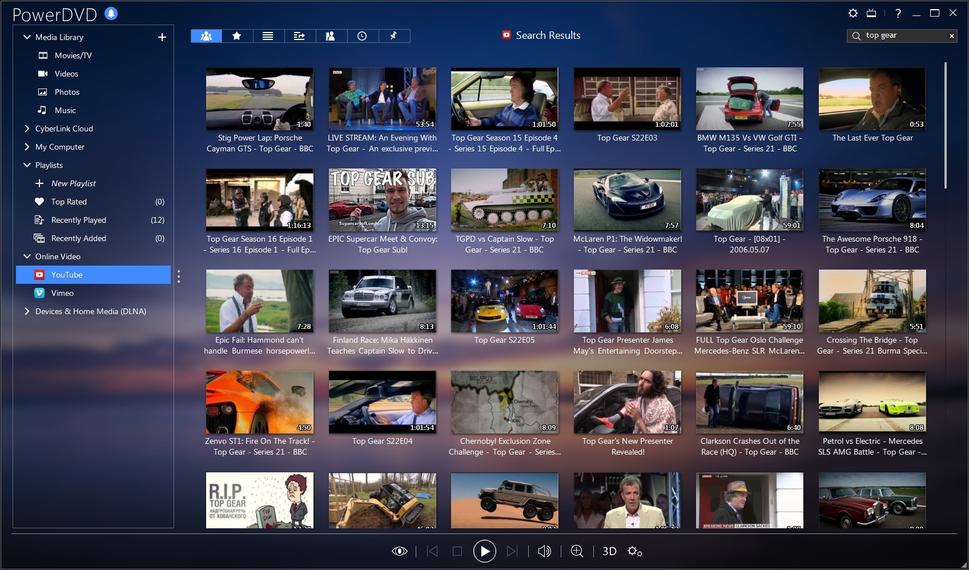
PowerDVD 15 Ultra interfaces with both YouTube and Vimeo, so you can browse and play videos from those services without firing up a browser. You can also save videos for offline viewing (pinning), and if what you’re looking for is actually just the music, PowerDVD will extract the audio track as an MP3 for offline listening as well. This is of dubious legality, but the whole YouTube thing is iffy to begin with. Caveats aside, both those features are super handy. Especially as you can find lots of stuff on YouTube that can’t be found elsewhere.
PowerDVD 15
PowerDVD does a great job searching and downloading video, as well as ripping audio tracks from YouTube. But my test version bogged down when other programs were downloading from the Internet at the same time.
The only problem I found with the online browsing was that PowerDVD didn’t like competing for bandwidth. If I was downloading via any other program, the YouTube browser spun its wheels and eventually said nothing was found. Kill the other downloads, and it was happy as a clam.

Versions and pricing

There are three versions of PowerDVD: the $100 Ultra that I looked at, the $80 Pro version, and the $60 Standard SKU. Standard has all the video and audio enhancements, but no support for 3D, HEVC, AVC, and other HD codecs. It’s for making your average video file look nice. I say skip that and stick with MPC-HC or VLC. Pro adds Blu-ray and AVC support. But if you’re going to pay, I say skip that as well and go directly to Ultra which adds the 3D and more, including 20GB of online storage for a year. That’s the simplified breakdown—the myriad differences are charted online at Cyberlink’s Web site.
You can also rent—excuse me—subscribe to PowerDVD 15 Ultra for $15 for three months or $45 per year. The former could be handy if you just need that super-quality picture for a few presentations or the like. But as I said, the picture quality can be addicting.

Should you buy it? 

PowerDVD 15 Ultra is the crème de la crème of media players, paid or free: It delivers the best picture, support for Blu-ray discs, 3D, and every advanced HD codec under the sun. Is it something most users need? No. I learned a long time ago is that content is considerably more important than presentation. Is it something most users will want? Yes. The picture looks that good.
To those who’ve noted that I said PowerDVD had never taken up permanent residence: Yes, it’s staying. And I’m pretty happy about it.
I’ll be even happier when Cyberlink implements audio effects on all music files, fills the gaps in its legacy video and music codec support, adds subtitle search capabilities, and uses better judgement placing pertinent options.
Posted by Unknown at 04:52 No comments:
Email ThisBlogThis!Share to XShare to FacebookShare to Pinterest

Read old emails from Outlook Express,


email stock image digital background

A friend of Russ and Sheila Stevens needs to access his late father’s Outlook Express messages—tricky since Outlook Express is no longer available. My answer covers more than Outlook Express.
Keeping old emails is pretty easy as long as you keep the same email client. Once you move from one mail client to another, however, you may need special software to access older mail.


But first, a quick review:
Outlook Express was a mail client that came with Windows from 98 through XP. It stored email messages in DBX files. Each file contained all of the messages within a single folder, such as Inbox.dbx.
Windows Mail came with Windows Vista. It stored each message in its own EML file. The result was a lot of little files, with Windows folders doubling as mail folders. For instance, your Inbox folder would contain a separate EML file for each message in your inbox.
Windows Live Mail is a free Microsoft download—one of the Windows Essentials collection. It also uses EML files in the same manner as Windows Mail.
Since Windows Live Mail is readily available and free, it provides one solution. It reads EML files, and it can import Outlook Express DBX files, turning the contents into EMLs. But if you’re not going to use it as a mail client, there are simpler solutions.
One of them is built into Windows 7. The Windows Explorer file manager can search EML files for content. It can also display the contents of a message in the Preview Pane.
0611 windows explorer
Unfortunately, Windows 8’s File Explorer doesn’t support EML in the Preview Pane, although it can still manage a search.
Another option: If you have Microsoft Office, you can read the files in Outlook. In fact, double-clicking an EML file will bring it up in that program.
But neither Microsoft file manager nor Outlook supports DBX files.
So if you have old Outlook Express files, or if you’re using Windows 8, you should download the free and portable MiTeC Mail Viewer. It searches and displays EML and DBX files.
It also supports Mozilla Thunderbird files, but I didn’t test this feature.
The program isn’t perfect. It displays each message as one big paragraph. And its search tool works on only one folder at a time.
0611 mitec mail viewer
Another option: Install Windows Live Mail and use that to convert the DBX files into folders filled with EML files. Select the dark-blue tab to the left of Home, then select Import messages.
Posted by Unknown at 02:55 No comments:
Email ThisBlogThis!Share to XShare to FacebookShare to Pinterest

Saturday, 13 June 2015

Fingerprint Smart Lock


Ola is keyless and phoneless fingerprint smart lock, which unlocks your door in less than a second. It incorporates fingerprint sensor FPC1020AM and Bluetooth connectivity to register your fingerprint. It integrates one set of 4 AA batteries, which is the equivalent of two years of normal use. In case of an emergency, you can power it with a micro USB.
1-cbbe180d694c08749197267d9e344149_original

The fingerprint sensor utilizes a radio frequency signal to scan the pattern under the surface of the skin. A fake fingerprint has no pattern under the surface, so this radio frequency technology saves from someone who may copy your fingerprints.
You can also share access with friends and family, either with a Bluetooth key or by registering their fingerprint. Also you can schedule temporary keys for visitors or guests.
2-c754aa67ea24be31973fd96bbc447ded_original
The project campaign is on the Kickstarter. The early bird pricing are gone, but you can still get it for $159, and estimated delivery is on March of 2016.
Posted by Unknown at 17:05 No comments:
Email ThisBlogThis!Share to XShare to FacebookShare to Pinterest

Sunday, 31 May 2015

15 tips and tricks to get the most out of your Samsung Galaxy S6

15 tips and tricks to get the most out of your Samsung Galaxy S6


Samsung didn’t see the kind of sales it hoped for with last year’s Galaxy S5, so this year the Galaxy S6 is a radical departure. A number of prominent features from last year’s device have been removed, and others are disabled by default to make for a cleaner experience. You don’t have to bend over backwards to get Samsung out of your face.
But there’s still plenty you can do to make the Galaxy S6even better. Just go through these tips and you’ll be ready to rock.

Set up fingerprints

gs6 tips fingerprints
The new fingerprint scanner works a lot better than the one on Samsung’s earlier phones.
The fingerprint sensor is built into the home button, just like last year, but it has been vastly improved. Now you can just lightly press it to have your print recognized—no more swiping. The setup process takes a little longer, but it will still only take a few minutes. To add fingerprints, go to your main system settings and enter Lock screen and security > Fingerprints. You can add up to four prints here by tapping repeatedly on the sensor. You probably want to use your thumbs and index fingers on each hand.
Remember to tilt your finger back and forth and place different parts of it on the sensor. This will help the system to recognize you more easily and reliably. Also make sure to get the very tip of each finger. While you’re at it, you can configure the security settings to use your fingerprint for accessing your Samsung account and filling passwords in the stock web browser.

Activate Smart Lock

Even if fingerprints aren’t your thing, you should have some sort of secure lock screen. There’s no reason to deal with it all the time, right? The Galaxy S6 supports Lollipop’s Smart Lock feature, which you can access in the Lock screen and security menu. It’s a level deeper in Secure lock settings.
Here you can set geographic locations as trusted, so your phone will default to a standard swipe unlock at home, for example. The GS6 also supports trusted devices, so you can keep it unlocked when it’s connected to a chosen Bluetooth accessory or NFC tag.

Change your home screen grid and layout

gs6 tips home screen
You can change the arrangement of the home screen grid, to show more or fewer icons.
Samsung has added the ability to pick the size of the home screen grid for its stock TouchWiz launcher. You can use this to cram more icons onto each panel, but you won’t get as many options as you would with a third-party home screen app. Simply long press on the home screen and tap Screen grid. The default is 4x4—it can be changed to 4x5 or 5x5.
While you’re at it, a long press on the home screen is also how you can add, remove, and rearrange home screen panels. You can set any panel to be the main panel by tapping the home icon at the top of each page.

Remove the briefing screen

Samsung’s Flipboard-powered news feed page is back this year, though it’s now called “Briefing” instead of “My Magazine.” You can use it if you want, but it’s still a strangely laggy interface. The method to disable it has also changed on the Galaxy S6. Long press on the home screen, then scroll over to the Briefing panel on the far left. There’s a checkbox at the top, so go ahead and uncheck it, and you’re done. You can tap the checkbox again any time you want to be reminded why you shut it off in the first place.

Disable built-in apps and services

gs6 tips disable apps
There’s still too much bloatware on the Galaxy S6, but you can disable nearly all of it.
Newsletter
Get the latest news, trends, apps, and tips for your Android phone.
Get our Greenbot download newsletter
 
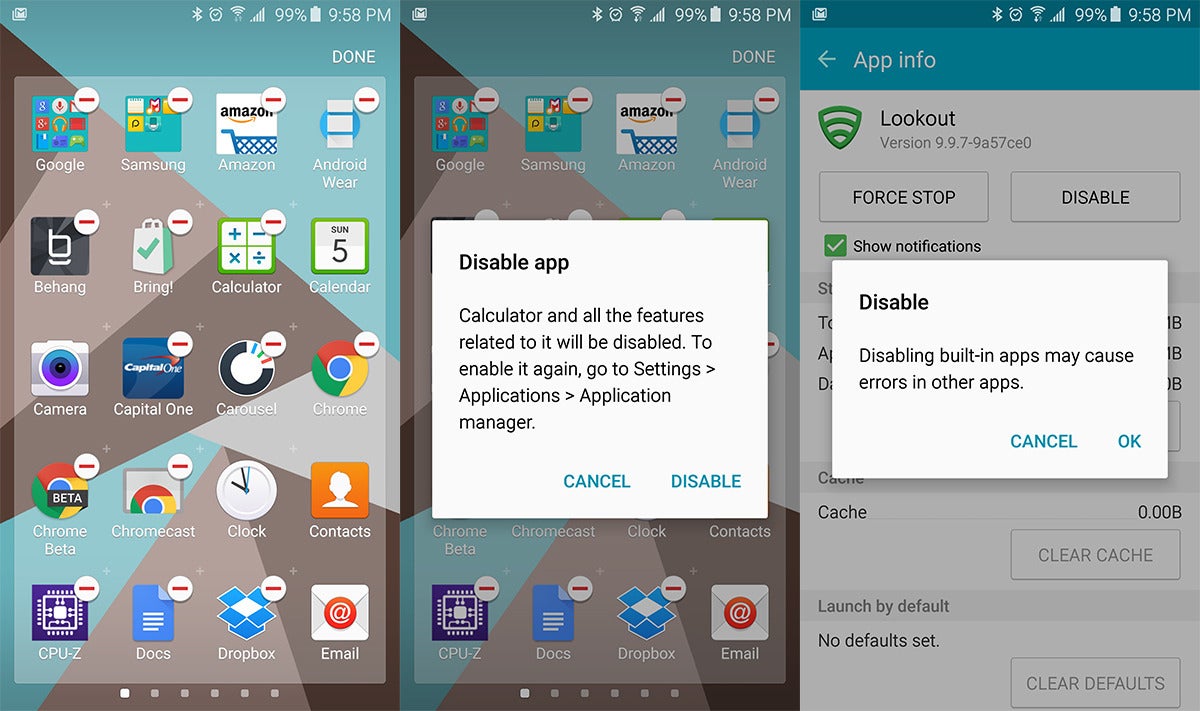
Samsung has reduced the number of built-in apps and services this year, but this is still Samsung we’re talking about. There’s a fair amount of cruft to clear out. Most of the pre-installed apps can be disabled so they don’t show up in the app drawer or run in the background. A few can be uninstalled completely as well.
There are two ways to go about this. You can open the app drawer and hit the edit button, then tap the minus sign on the apps you want to remove. They will be uninstalled if possible, otherwise the system will simply disable them.
The other method is to go into the main settings and open Applications > Application manager and find the apps you want to disable or remove in the list. The info page when you tap on them will have the applicable options.
Some things you might want to get rid of include: Lookout, the Microsoft suite of apps, and S Voice. Since S Voice is no longer bound to the home button, this is all you need to do in order to do away with that particular feature. And you should. It’s still not very good.l

Set up ‘OK Google’ voice detection

If you got rid of S Voice in the above step, you might want to get Google’s (much better) voice command system set up. On the Galaxy S6, you can call up a voice query from any screen by saying “OK Google.” It just takes a few minutes of your time to configure.
Head over to the Google app by long-pressing the home button or launching it from the app drawer. Open the settings from the slide-out navigation drawer on the left and open up Voice > Ok Google detection. Toggle on the From any screen option and go through the setup process. The phone will ask you to say “Ok Google” a few times so it can learn your voice.
Optionally, you can activate “personal results,” which makes voice search features available from the lock screen too. It’s a little less secure as someone could place calls or access your address, but it can be useful for quick access to voice commands. Be sure to check out our full list of Google Now voice commands.

Customize notification toggles

gs6 tips notification toggles
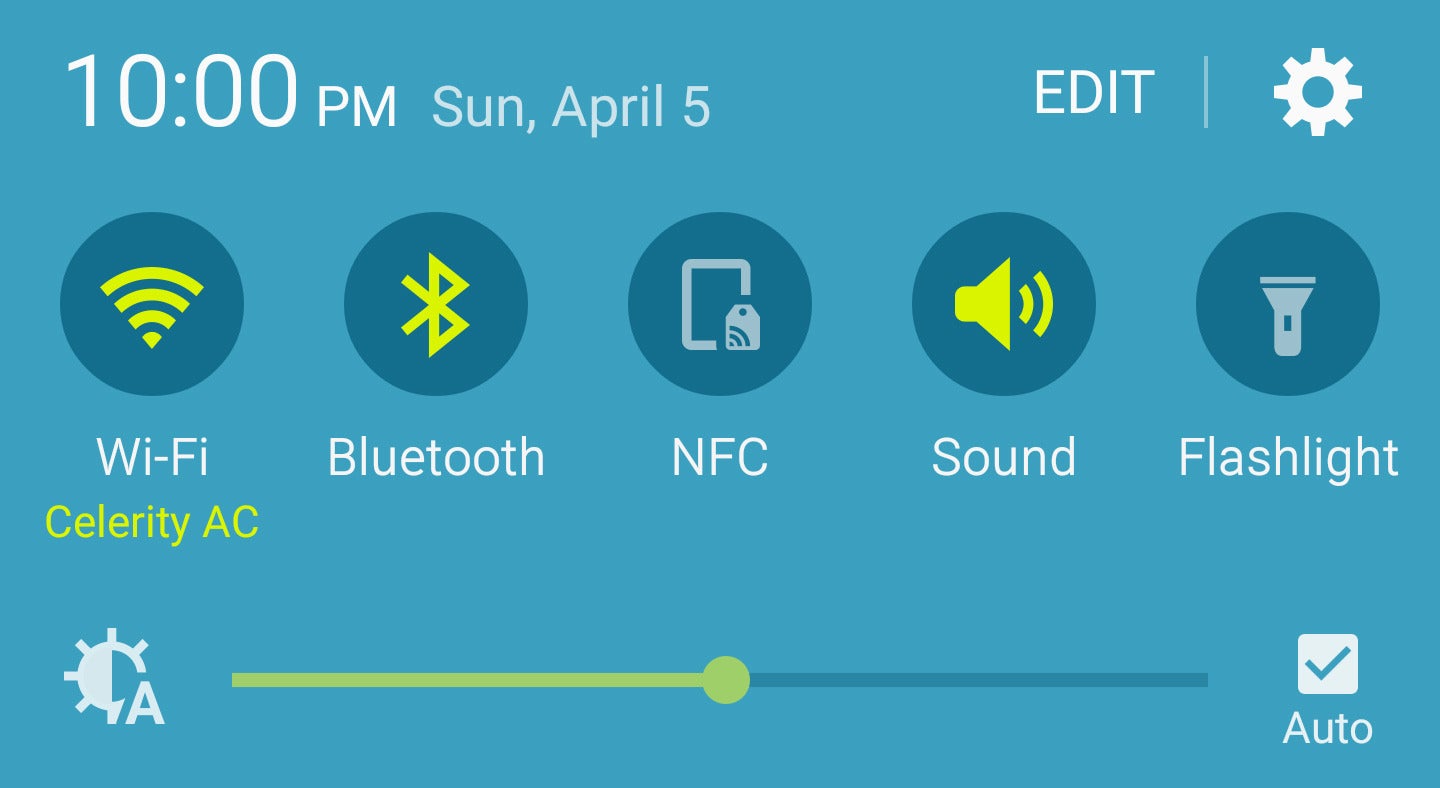
Change the quick toggles to the features you use most often.
From this menu, you can drag the buttons around as you like. The first group of five icons at the top of the screen will be seen when you open the notifications and the second group is accessible by scrolling. Samsung has removed the expanded toggle list, so the remaining buttons are only available in the editing interface.

Customize quick settings

You might notice using the Galaxy S6 involves poking around in the settings a lot. Well, you can make some of those menus easier to get to by configuring the Quick Settings. Note, this is different from Quick Settings on stock Android—which refers to the toggles accessible from the notification shade. On the Galaxy S6, “Quick Settings” refers to the buttons at the top of your main Settings menu that take you to your most frequently used settings pages.
Open Settings and you’ll see a few buttons pre-populated at the top. Tap the Edit button in the upper right to change what’s shown. You can access things like WiFi, data usage, app notifications, fingerprints, and more. 
Simply tap Edit at the top of the existing Quick Settings and put tap the checkbox next to those which you want to eappear. Quick Settings supports a maximum of nine links of your choice. 

Enable download booster

gs6 tips download booster
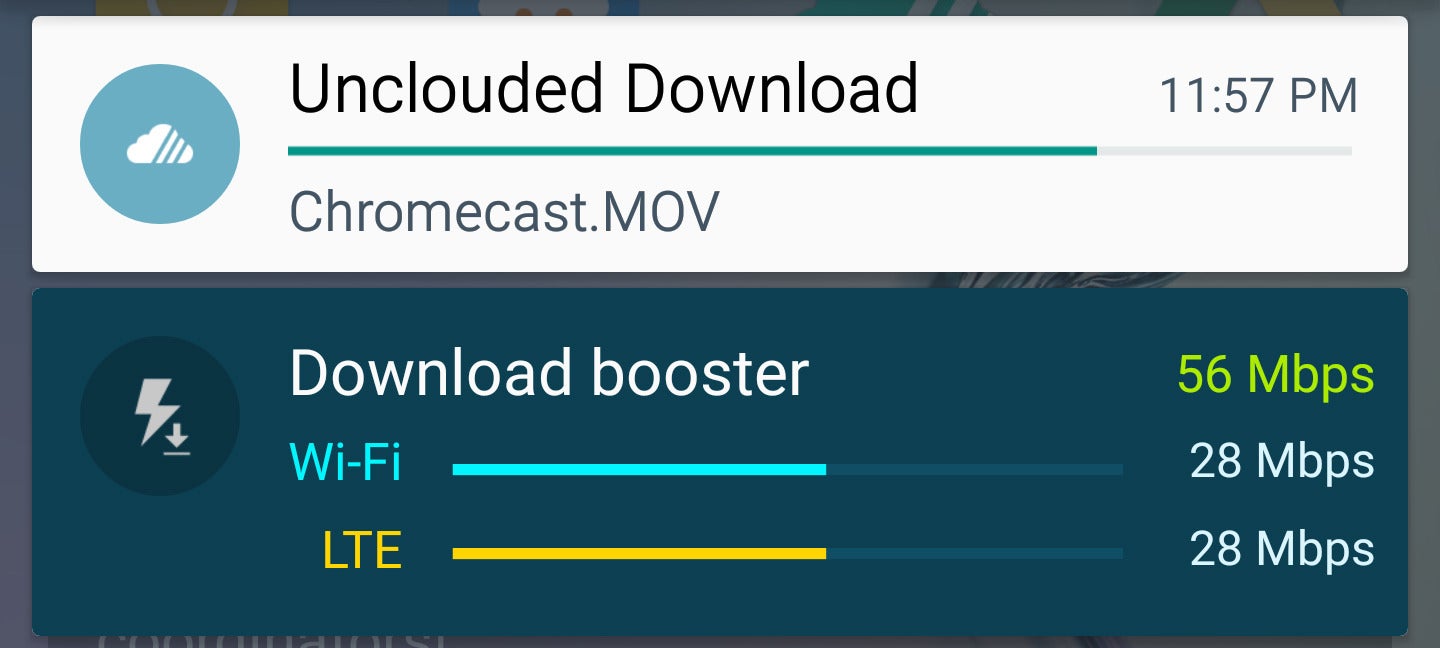
Download booster is a great feature. Here’s hoping your carrier didn’t disable it.
Download Booster was one of the coolest features from the Galaxy S5, and it’s back with the Galaxy S6. However, it’s off by default and buried in the settings. When enabled, Download Booster combines the Wi-Fi and LTE connection to download large files faster than either connection could on its own.
To access Download Booster, open the main system settings and go to More connection settings > Download Booster. Turn it on and get ready for faster downloads. If this setting isn’t present, guess what? Your carrier made Samsung remove it. In fairness, Download Booster can gobble up a lot of data if you’re not paying attention.

Configure power saving modes

Samsung’s Ultra Power Saving Mode can stretch a tiny bit of battery life into more than a day of use. The phone won’t be as much fun to use, but you’ll be able to take calls, send messages, and use a select few apps. Ultra Power Saving Mode switches the device to a simplified black and white interface and disables most background services. Before you find yourself turning it on with a nearly-dead battery, you should fire it up while your battery is full and get things organized.
There’s a notification toggle to activate Ultra Power Saving Mode when your battery gets really low, but it can also be accessed from the battery settings menu. In Ultra Power Saving Mode you can select a few apps to have as shortcuts on the home screen. There aren’t many, but you can choose from the stock browser, Google+, messaging, and a few others.
There’s also a regular power saving mode that’s a little less extreme. This setting reduces the screen brightness, down-clocks the processor, reduces the display’s refresh rate, and shuts off vibration. This mode can be configured to switch on automatically when you reach a certain battery level between 50% and 5%. It’s a good idea to set this up. You’ll find it in Settings > Battery > Power saving mode.

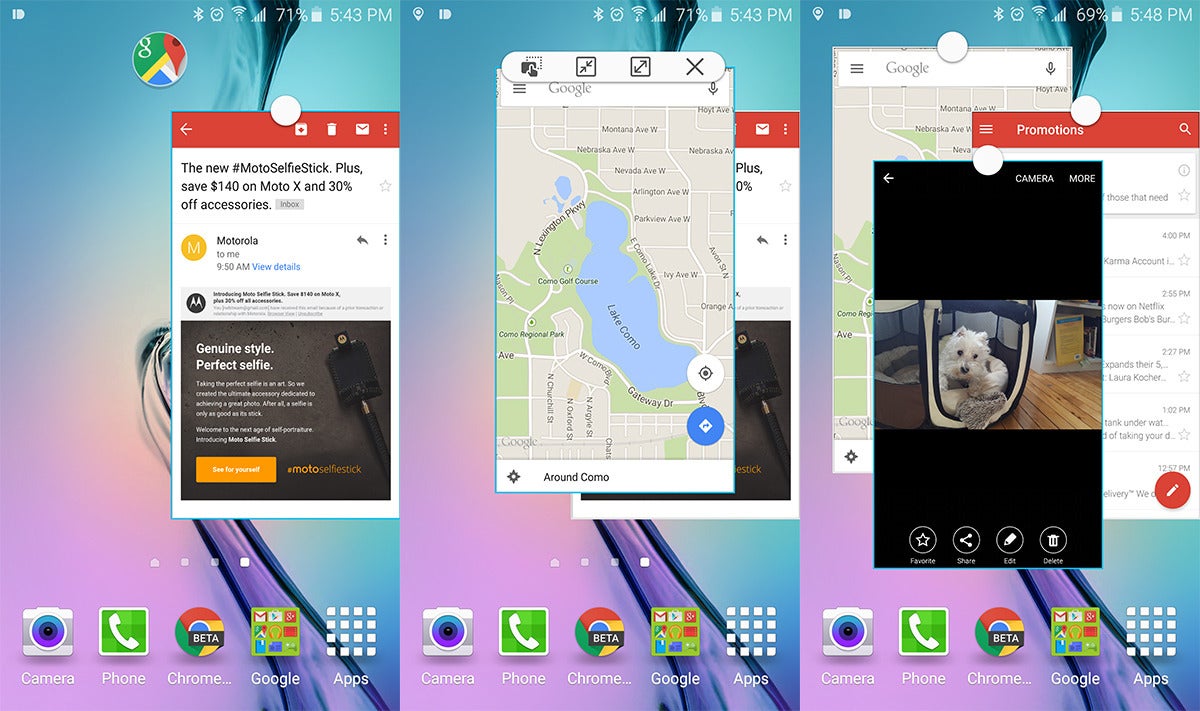
Use the new multi-window mode

gs6 tips multi window
Run two aps at once, side by side, in multi-window mode.
Samsung has changed the way Multi Window works on the GS6. It’s now tied into the app switcher UI instead of being something you need to explicitly start up. Apps that support Multi Window will have a small twin rectangle icon in the corner when you have the app switcher open. You can tap on this button to move that app to the top half of the screen. On the bottom half you will get a similar stack of recent apps that also support Multi Window, as well as a scrollable list of all Multi Window apps.
You can also long-press on the multitasking button to move the current app to the top half of the screen (provided it’s a Multi Window compatible app), then pick another app for the bottom half. Once you’ve got both apps up, you can go back and forth between them and adjust the position of the divider, giving one app or the other more room. When you’re done, just hit back or home to leave Multi Window mode.

Enable screen pinning

Screen pinning is a feature introduced in Android 5.0 that makes it easy to hand your phone to someone else without worrying about them getting too nosey. It a few taps you can lock the screen to a single app to keep your stuff private, but you need to enable it first. Screen pinning is found in Settings > Lock screen and security > Other security settings. You’re looking for “pin windows,” which is way down at the bottom.
You can pin any app by opening the app switcher, then tapping the little pushpin icon in the lower right. When there is a secure lock screen on your device, you can also choose to require the PIN, pattern, or fingerprint when leaving the pinned application. This ensures only you will be able to unlock the phone and access other apps.

Pop-up view

gs6 tips pop up
Pop-up View makes more sense on a big-screen phone like the Note 4, but it’s nice that Samsung included it anyway.
So now you’ve mastered Multi Window mode, but there’s something else of note tangentially connected to that. Samsung included a cool feature from the Note 4 called Pop-up View that works with any app that supports Multi Window (and only those apps). Basically, you get a resizeable floating app window that you can move around the screen. You can even have more than one and minimize them to floating icons.
There are three ways to go about this: long press on an app in the multitasking UI, drag down from the top right corner when an app is open, or use the pop up button when you have an app in Multi Window mode.
You can arrange these floating windows however you want, drag content between them, and maximize them to full screen at any time.

Pick ‘Do not disturb’ settings

The Galaxy S6 has support for the priority notification system that was added in Android 5.0, but it doesn’t use the same terminology. If you’ve used another phone with Lollipop, you might not even know what to look for. This seems unnecessarily confusing, but okay. All the notification modes are under Do not disturb, which you’ll find in Settings > Sounds and notification.
If you turn on Do not disturb mode, you have the option of allowing exceptions or not. With no exceptions, the phone won’t make a peep, not even for alarms. That’s the same as “None” mode from other Android phones. If you allow exceptions like alarms, calls from certain numbers, and priority apps, that’s the same as Priority mode.
If you don’t want to manually toggle Do not disturb every evening, you can use this settings menu to set a schedule.

Try some Themes

gs6 tips themes
Support for themes is good! Samsung’s initial selection of themes is...not so good.
Samsung added a theme engine to Lollipop on the Galaxy S6, which is great. However, the themes available at launch are, well... ugly, to put it kindly. Still, this is a neat feature you should be aware of going forward. In time, more themes are sure to arrive that are easier on the eyes, and that could instantly make the Galaxy S6 more appealing.
The theme settings are available in the main system settings, or by long-pressing on the home screen. From here you can download free themes, buy premium ones (eventually), and apply them to the phone. This is an all-or-nothing scenario—Samsung’s themes come with sounds, wallpaper, icons, fonts, and interface colors. The few currently available are rather over-the-top, but there’s always hope for the future.
Posted by Unknown at 05:55 No comments:
Email ThisBlogThis!Share to XShare to FacebookShare to Pinterest

Saturday, 23 May 2015

5 THINGS YOU CAN DO WITH A SECOND INTERNAL DRIVE


ssds raid primary


When Danny had a new hard drive installed in his desktop PC, the technician left the old drive in as well. Danny asked me what he can do with the extra drive.
Hard drives and SSDs fall easily into the category of two is better than one. Not only do you have more room for storage, but you can use that extra room to speed up your PC or protect your system from a hard drive crash.
Here are a few things you can do with a second internal drive:

1. Separate Windows and data

You can better protect your Windows installation and your library files if they’re on separate drives. If one of your drives is an SSD, put Windows on that one. Otherwise, put Windows on the smaller drive. I’ve discussed this in more detail.

2. Experiment with operating systems

If you have a spare drive, you can install another operating system without partitioning. This is a great way to learn Linux or test Windows 10 before it becomes safe enough to use.

3. Turn two drives into one very fast drive

If your motherboard supports it, and the drives have the same capacity, you can set up a RAID 0. This turns the two drives into one very large, very fast virtual drive.

4. Create crash insurance

You can create a RAID 1, which writes the exact same data on both drives. It doesn’t speed up your PC and you lose the extra storage. But if one of the drives crashes, the other keeps on going. Again, this requires motherboard support and drives of matching capacity.
But it’s important to remember that even with a RAID 1, you still need a backup outside of the physical computer. Which brings us to my last suggestion:

5. Turn an internal drive into an external one

Remove the spare drive, and install it in a SATA-USB drive enclosure (you can buy one for less than $10). Effectively, that turns it into an external drive, which you can use for backup.
If nothing else, enjoy the extra space! When your main drive runs out of room, you’ll have a place to put the overflow files.
Posted by Unknown at 05:54 No comments:
Email ThisBlogThis!Share to XShare to FacebookShare to Pinterest

HOW PREVENT MOBILE MALWARE IN 3 EASY STEPS

Security Measures

Staying safe in an increasingly connected world
mobile security stock image one bad device

How to prevent mobile malware in 3 easy steps

Looking only at the data provided by security firms, the world appears on the verge of a mobile malware apocalypse.
The number of samples—which represent unique, but mostly automatically generated variants of malicious programs—exceeded 5 million in the third quarter of 2014, according to security firm McAfee. Using a different counting method, security firm Symantec classified a similar magnitude—1 million of the 6.3 million mobile apps it discovered—as malware in 2014.
Yet, these data points tell only the darker side of the story. An increasing volume of data supports the idea that Apple’s and Google’s gated communities for mobile software have paid security dividends and kept most monstrous malware at bay.

Apple, Google app stores are most vigilant

Less than 0.5 percent of the 1 billion devices scanned by Google security software had a potentially harmful application (PHA) installed, according to Google’s 2014 Android Security Report, published in April. Potentially harmful applications include spyware, ransomware and fraudulent apps, which Google scans for using a security capability, known as Verify Apps, that runs in the background on modern Android systems. In addition, the company checks mobile apps submitted to the Google Play store, which offered about 1.5 million pieces of software at last count, and removes applications, if they are found to be violating the company’s policies.
The measures mean that, among users that stick to Google’s Play store, less than one device for every 10,000 has a program considered malicious. “I don’t think malware represents a risk,” says Adrian Ludwig, lead security engineer for Android at Google. “I think the damage of mental anguish worrying about mobile malware likely exceeds the potential harm from actually being infected by it.”
Not that cybercriminals and malware developers aren’t trying. Smartphones and tablets tend to have as much, if not more, private data on their users than computers, so attempting to get malware on the devices is logical. No wonder, then, that online miscreants have focused more heavily on infecting mobile devices, using automated techniques to create tens of thousands of malware variants to get around the detection systems—again, automated—used by Google, Apple and security firms.
Yet, for most parts of the world, malware on mobile devices is a non-issue. In a recent report, network security firm Damballa analyzed cellular data and found signs of potentially malicious activity on only 0.3 percent of devices. Business services firm Verizon looked at traffic on its own cellular network and found “virtually no” iOS malware and very little Android malware, according to Bob Rudis, a security data scientist with the company.
“There was a blip here or there, but the reality was that there was nothing of significance to note,” he told the press during an April 2015 call.

Third-party app stores carry the most risk

Most malicious software is found in third-party app stores popular in a few countries that are loaded with pirated versions of software or trojanized applications. While Symantec automatically discovered and analyzed 6.3 million mobile apps in 2014, for example, there are only about 1.5 million apps in the Google Play store and fewer than that in the Apple App Store, according to AppFigures, meaning that two-thirds of applications from other sources make up the majority of data.
Paying heed to the data, three simple steps are recommended for North American users.

1. Use an official app store

The official app stores—namely, Google’s Play store and Apple’s App Store—regularly check uploaded software for malicious behavior. While the checks are automatic and can be fooled, they do act as an initial bar that attackers have to circumvent. The companies will remove programs later found to be malicious as well.
Consumers that load applications to their device only from Google Play, for example, have a 0.1 percent chance of having a potentially harmful application on their device, rather than 0.7 percent for devices that load software from outside of Google.
Loading in applications from other app stores or Web sites, an activity known as sideloading, gives attackers and criminals an opening to install their own code. Many of those app stores do not perform the same security functions as Apple and Google. Russia, for example, is the leader in infected phones, with about 3.75 percent of devices containing a PHA, according to Google’s data.
Using apps outside official stores “is a risky behavior,” Google’s Ludwig says. “Potentially harmful applications are 7 to 10 times more likely to be installed outside of Google Play.”

2. Don’t jailbreak your phone

Mobile devices come with a lot of built-in security. Using programs to hack the devices to remove the carriers’ and manufacturers’ restrictions—an activity known as “jailbreaking”—can lead to freer markets, but also undermines much of the security protecting the devices. The ability to keep applications from accessing protected data and to validate applications are both disabled on jailbroken apps.
Finally, users who jailbreak their devices need to rely on their own technical know-how to protect the devices and their data.

3. Update often

Vulnerabilities have historically not led to increased attacks on mobile devices. Apple’s iOS had nearly 8 times as many vulnerabilities than Android in 2014, but nearly all malware targets Android, according to Symantec’s latest Internet Security Threat Report.
The mobile software space, however, is moving quickly and developers tend to push out bug fixes, including security issues, quite often. For that reason, users should update their software as frequently as possible and always look out for system updates. Updates are typically delayed by all the steps required to update an Android device, said Jon Oberheide, chief technology officer of Duo Security, a mobile security provider.
Posted by Unknown at 04:09 No comments:
Email ThisBlogThis!Share to XShare to FacebookShare to Pinterest

Friday, 20 March 2015

GET YOUR COMPUTER TASKS TAKEN CARE OF BY K-TECHNOLOGIES E-SERVICES


Get the computer tasks done by professionals within a short period of time. computer services ranging from 
  • Typing and Data entry

  • Data Collection Forms

  • Online Registrations & Checkings

Read more »
Posted by Unknown at 11:29 No comments:
Email ThisBlogThis!Share to XShare to FacebookShare to Pinterest

Saturday, 14 March 2015

5 Things You don't Know about the Whatsapp Messenger


Whatsapp is a great messenger that works as a cross platform mobile messaging app, which allows users to send or exchange SMS to each other with no service charges.
Whatsapp, has covered it's usage to over 500 million active users with billions of messages being sent every day, and over 70% of whatsapp users, are online for daily usage.

Today's stroll, I would highlight the top 5 Things You don't Know about the Whatsapp Messenger.


5 Things You don't Know about the Whatsapp Messenger

Read more »
Posted by Unknown at 09:17 No comments:
Email ThisBlogThis!Share to XShare to FacebookShare to Pinterest

Whatsapp's Voice Calling Features Released - How to Enable it on Android Phones

Whatsapp, the world biggest social messaging app finally integrated the voice calling features. This shows how rapid the giant social messaging app is growing.

However, this should be a very bad news for skype messenger because nobody knows what would become of skype messenger after the full implementation of whatsapp's voice call features to all smart phones.

Read more »
Posted by Unknown at 09:09 No comments:
Email ThisBlogThis!Share to XShare to FacebookShare to Pinterest

Thursday, 12 March 2015

How to Log In to Your PC Remotely With TeamViewer

Have you ever been somewhere and wanted to show a family photo or retrieve a document, only to realize that the file is on a home computer? The more connected our devices become, the more they increase our desire to access our information anywhere.
But while mobile devices increasingly outsell traditional computers, a lot of our most important information continues to be stored on stationary home desktops or laptops, which don't offer convenient access from just anywhere because of home firewalls. Even when you're on a home network, having to move to a particular device on the other side of the house can be annoying.
Software engineers have come up with an easier way to gain access from afar. Using simple software, you can see and control a remote computer on another device that you're currently using--even from a different computer network. All you typically need is a working Internet connection for both devices.
Various methods and applications can enable this functionality for your devices. In this guide, we'll focus on TeamViewer, a popular program that offers compatibility with Windows, Mac, and even some smartphone operating systems. Here's how to use it.
Install the Software on the First Computer
Read more »
Posted by Unknown at 08:03 No comments:
Email ThisBlogThis!Share to XShare to FacebookShare to Pinterest

Howto downgrade from Internet Explorer 9 (IE9) to Internet Explorer 8 (IE8) 2 inShare


Just of recent when I was trying to access a site with secure http (https) I was required to either use IE6 or above but not IE9. Now since my laptop had upgraded to IE9 through updates, I had to find away to downgrade to IE8 in order to do online banking. Anyway below are some of the steps to get back your IE (8)
Steps to downgrade Internet Explorer 9 to Internet Explorer 8.
STEP 1:
- Close all programs.
- Click Start, and then click Control Panel.

STEP 2:


Howto Upgrade your Joomla website from 1.6 to 2.5 Manually


Hey people,
It was kind of rough for me to really have my website upgraded to 2.5 joomla version from 1.6. However after reading a couple of links here and there these are my versioned steps to have your website upgraded to 2.5
Step 1:
Read more »
Posted by Unknown at 07:01 No comments:
Email ThisBlogThis!Share to XShare to FacebookShare to Pinterest

Make Bootable CD / DVD Disc using PowerISO


  • Run PowerISO.
  • Click on the "New" button on toolbar or choose  the "File > New > Data CD / DVD Image" menu.
  • Click on the "Add" button on toolbar to add files and folders. You can also directly drag files and folders from Windows Explorer to the PowerISO window.
  • Choose the menu "Action > New Folder" to create a new folder.
  • Choose the menu "Action > Change Label" to change the default label.
  • Choose the menu "File > Properties" to set the iso file properties.
  • Click on the "Save" button on toolbar, or click on the "File > Save As..." menu.
  • Choose the menu "Action > Boot > Add Boot Information" to load a bootable image file.
  • Save the iso file to "Standard ISO Images (*.iso)" format.
  • To make bootable CD, please burn the iso file to a blank CD / DVD disc.
Posted by Unknown at 04:36 No comments:
Email ThisBlogThis!Share to XShare to FacebookShare to Pinterest

HOW TO CONNECT TWO COMPUTERS WIRELESSLY

Need to quickly connect up to another laptop wirelessly so you can transfer some data without a router or Internet connection? Without an Internet connection, you can’t use syncing services like Dropbox to share data between devices easily. If you have a networking device like a router, hub or switch, you can get the computers to talk to each other, but it requires quite a bit of additional work (file sharing, permissions, firewall configurations, etc).
However, if you have a laptop or computer that has a wireless card and so does your buddy, you can use the cards to make a wireless connection between the two computers. Once they are connected wirelessly (also called a peer-to-peer ad-hoc wireless network), you can easily share data between the computers.
You can create an ad-hoc network in Windows or in OS X and in this article I’ll explain the steps for creating the network for each OS. It’s important to note that ad-hoc networks in general have certain limitations that make them only useful for certain situations. Firstly, the speed of an ad-hoc network is normally less than that of a normal infrastructure network. Ad-hoc network specs only require a max speed of 11Mbps, which is way slower than b/g/n/ac max speeds.
Secondly, you can’t monitor signal strength of ad-hoc networks, so you have to make sure the computers are fairly close to each other and don’t move around a lot. Lastly, ad-hoc networks don’t support all the security features of normal infrastructure networks, so they can be more easily hacked.

Read more »
Posted by Unknown at 02:35 No comments:
Email ThisBlogThis!Share to XShare to FacebookShare to Pinterest
Newer Posts Older Posts Home
Subscribe to: Posts (Atom)

Contributors

  • Gson
  • Unknown
  • Unknown

Blog Archive

  • ▼  2015 (39)
    • ▼  November (2)
      • 7 Neat Linux Tricks That Newbies Need to Know ...
      • How to Ultra Compress Files from GB to MB – KGB Ar...
    • ►  August (1)
    • ►  July (4)
    • ►  June (12)
    • ►  May (3)
    • ►  March (17)
Simple theme. Theme images by gaffera. Powered by Blogger.